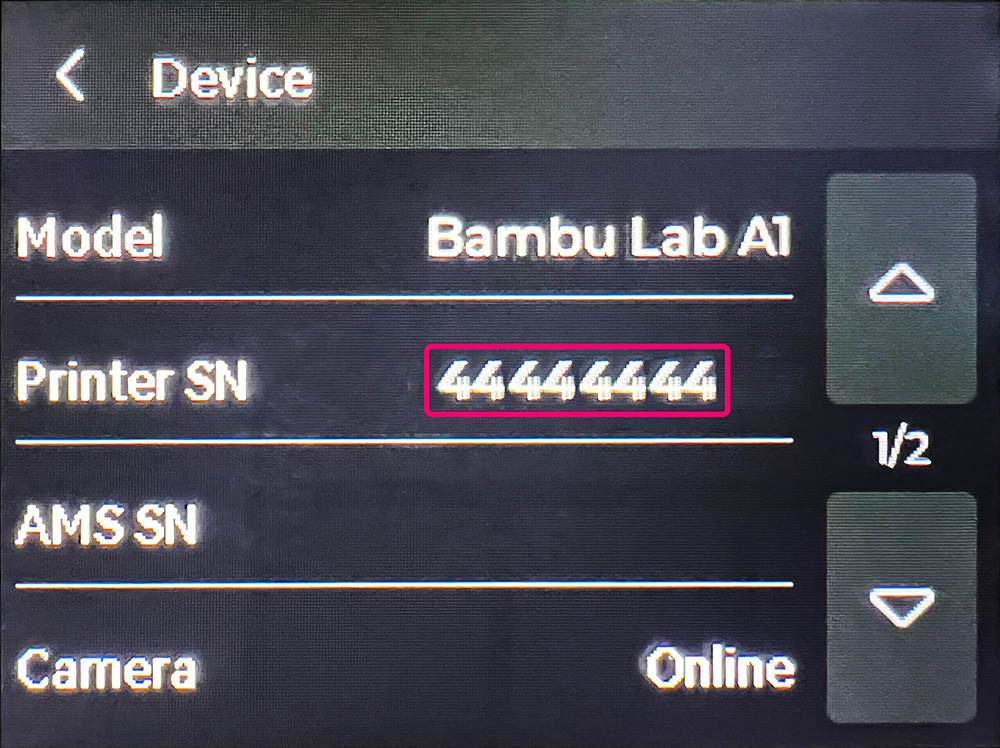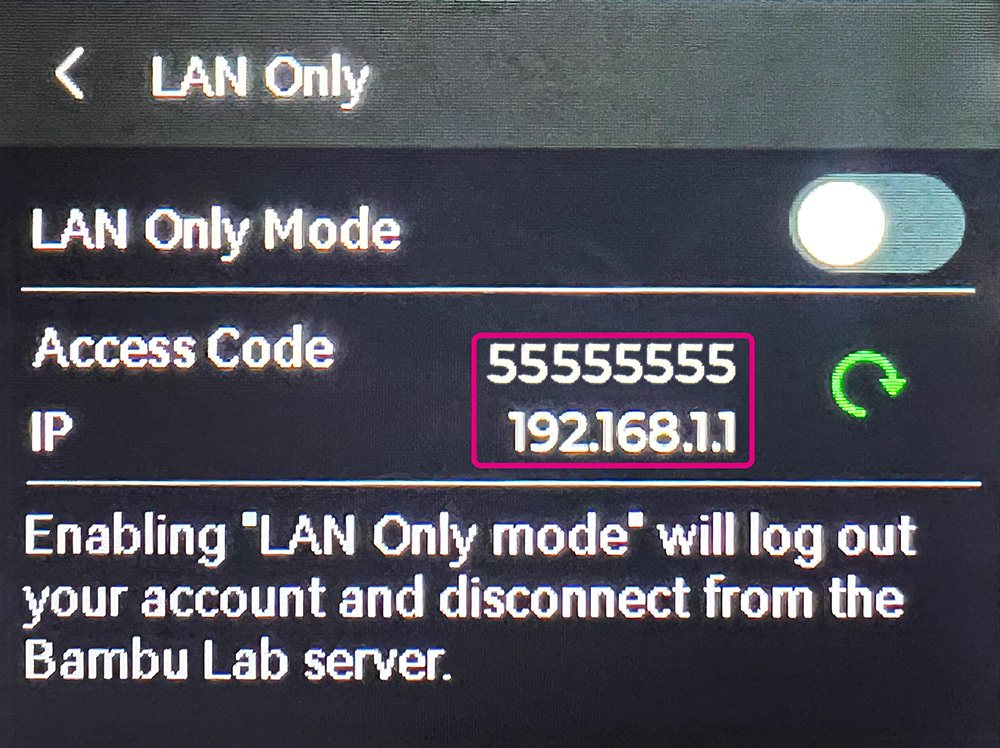
To communicate with your printer, bridge software must know it's ip address, access code and serial number. Theese parameters are required my MQTT protocol implementation on Bambu Lab printers.
To add new printer, go to Inventory → Printers and hit Add Printer button. Complete the form and hit Submit button. The cost parameter means printer hourly cost (printer price + consumables). You can also include electricity in this cost or use smart plugs integrated with JetForge for precise energy cost calculations. To achieve host, access key and s/n parameters, follow guides below.
For X1 series printers, you can find required parameters in settings section (gear icon) under General and Network tabs. You may also wish to enable LAN Mode Liveview to allow bridge achieve camera image via RTSP protocol.
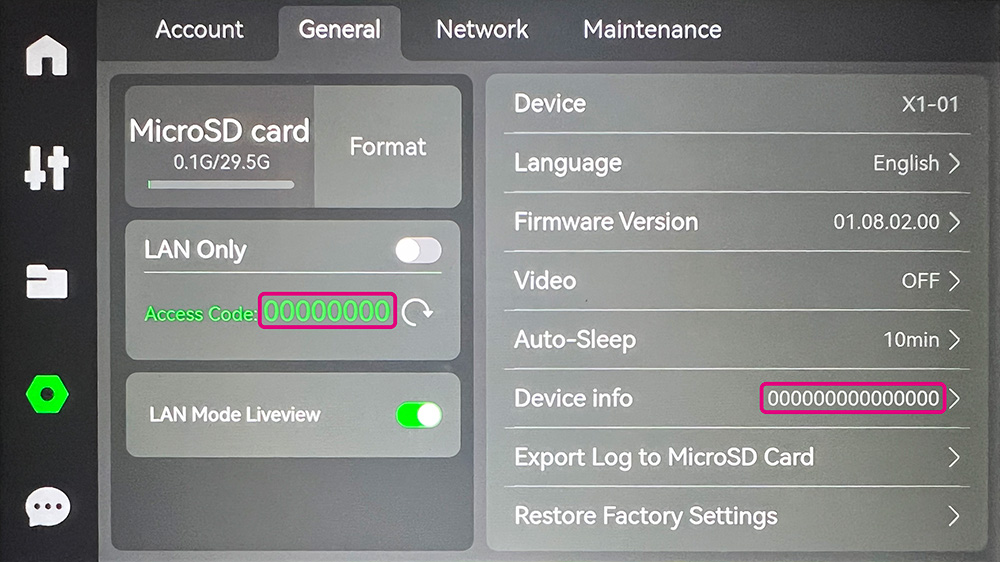

For P1 series printers, settings are located under gear icon on Device and WLAN pages. P1 printers do not allow to start print jobs via MQTT over LAN. If you want to start print jobs from JetForge, you have to enable LAN mode.


For A1 series printers, under the "Settings" menu you can find theese parameters on LAN Only and Device pages. We found, that latest firmware on A1 requires LAN mode to be enabled to start jobs from JetForge.